 SafeGrounds
Letter Heads & Settings
Letter Heads
The Letter Heads page allows Classification Owners to upload and manage letterhead files used on documents viewed in SGDocs, the system's document viewer. Only users with owner access can view and manage letter heads.
The Letter Heads page displays all existing letter heads for the classification. Each entry includes:
- Title — The name of the letter head
- PDF Margin — The top margin applied to documents using the letter head
- Created By — The user who created the letter head
- View — Options to view or download the letter head
Using the ellipsis menu next to a letter head you can edit or delete it. Deleting a letter head permanently removes it from the classification.
Adding a Letter Head
Click Add Letter Head to open a slide-over panel where you can define the letter head and upload associated files.
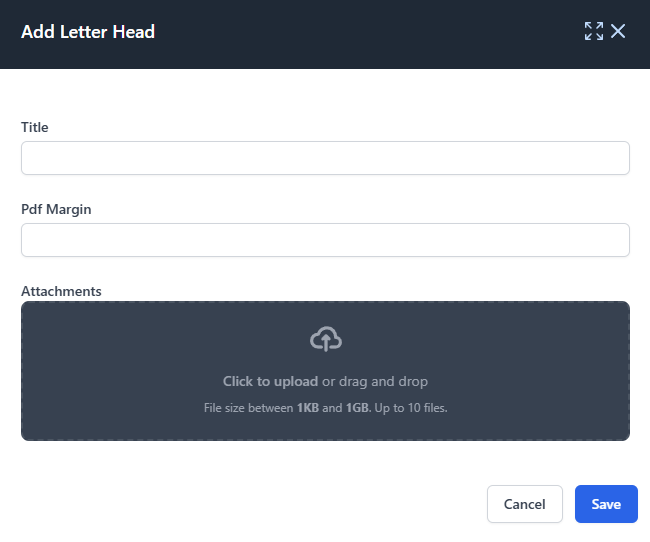
- Title — Enter a descriptive name for the letter head
- PDF Margin — Specify the top margin to be applied when the letter head is used on documents
- Attachments — Upload the file(s) that make up the letter head. File size must be between 1KB and 1GB and up to 10 files can be uploaded
Click Save to create the letter head or Cancel to close the panel without saving.
Notification Settings
The Settings section allows Classification Owners to manage notifications for their cases. Use the Settings card to select case types and team members to notify when changes occur.

Notify Team Members on Case Type Removal
When a case type is removed from a case an email can be sent to the team members assigned to that case.
- Case Type — Use the multi-select dropdown to choose which case types should trigger a notification when removed
- Team Members to Notify — Use the multi-select dropdown to select which team members should receive the email notifications