 SafeGrounds
Case Options Menu
About the Options Menu
The Options menu provides administrative actions that affect a case's status, visibility, or structure. The Options button is available on the Case Overview page, which is the default page displayed when you open a case.
To access these actions:
- Open a case
- Click the Options button

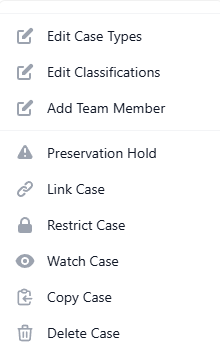
When you click the Options button a dropdown menu appears with the actions described below.
Preservation Hold
Places a hold on the case to prevent it from being deleted during the next data retention cycle. When selected:
- A slide-over panel appears
- You must provide a reason for the hold
- Once applied a yellow Hold badge appears at the top of the case
- The case will not be removed during scheduled data retention deletions
- The hold remains in place until it is manually removed
Use this when a case must be preserved for compliance, legal, or administrative reasons.
Link Case
Links two cases together in the system. When cases are linked:
- Each case will display the linked case in the Case Information section
- Users can easily navigate between connected cases
- Both records remain separate but visibly associated
Restrict Case
Limits visibility of the case to team members only. When a case is restricted:
- Only authorized team members can view it
- General users will not be able to access the case
- This is typically used for sensitive matters
Watch Case
Allows you to monitor a case from your dashboard. When selected:
- A slide-over panel appears
- You can check the box to watch the case
- You may add a note and a deadline
- The case will appear in the My Watch List widget on your dashboard
Copy Case
Creates a new case using the current case's information. When selected:
- All case data is copied
- The Add Case page opens with fields pre-filled
- You may edit any information before saving
- After saving the original case will appear under Linked Cases in the Case Information section of the new case
This helps maintain traceability between related cases.
Delete Case
Permanently deletes the case from the system. Once deleted the case will no longer appear in searches or reports.
Additional Case Management Actions
The following options provide quick access to tools that are documented in more detail elsewhere in this guide:
- Edit Case Types — Allows modification of the case type assigned to the case. See Case Types & Classifications
- Edit Classifications — Allows modification of the case's classification and associated phase. See Case Types & Classifications
- Add Team Member — Allows you to assign or update team members on the case. See Team Members