 SafeGrounds
Email Functionality
Sending Emails in SafeGrounds
SafeGrounds allows users to send emails directly from within a case. Emails sent through SafeGrounds are automatically documented by being attached to an Action within the case.
To access this feature:
- Open a case
- Select Email from the Case Menu
Adding Recipients
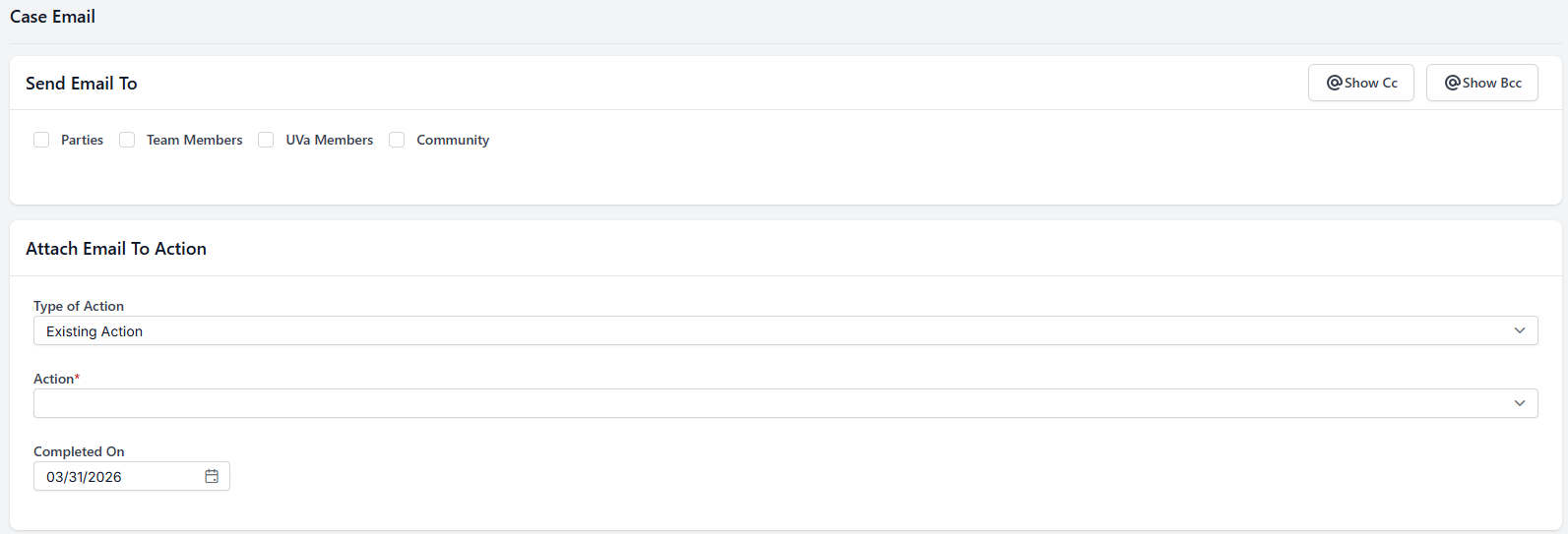
At least one recipient is required in the To field. Recipients can be selected from the following sources:
- Parties — Displays a dropdown list of Involved Parties associated with the case
- Team Members — Displays a dropdown list of users assigned to the case
- UVa Members — Provides a searchable field to find users by name or computing ID
- Community — Provides a text field to manually enter external non-UVa email addresses
Multiple recipients can be added across the To, Cc, and Bcc fields. Selecting a checkbox will reveal a dropdown menu or text field depending on the option selected.
Documenting Emails as Actions
The Attach Email To Action section allows you to associate the email with case activity. You can attach the email to an existing Action or create a new Action to document the communication. This ensures that all email communication is recorded within the case history.
Using Email Templates
The Template section allows you to select from pre-configured email templates. Templates may be personal (created by you) or public (available to all users). Available templates are filtered based on the Case Type(s) associated with the case. For more information on creating and managing templates see Templates.
Templates can be edited before sending and help improve efficiency and consistency for commonly sent communications.
Composing and Sending an Email
To send an email:
- Enter recipients in the Send Email To section
- Optionally select and edit a template
- Enter a Subject
- Enter or review the Body
- Click Send Email
- Confirm the action when prompted
Delivery Options
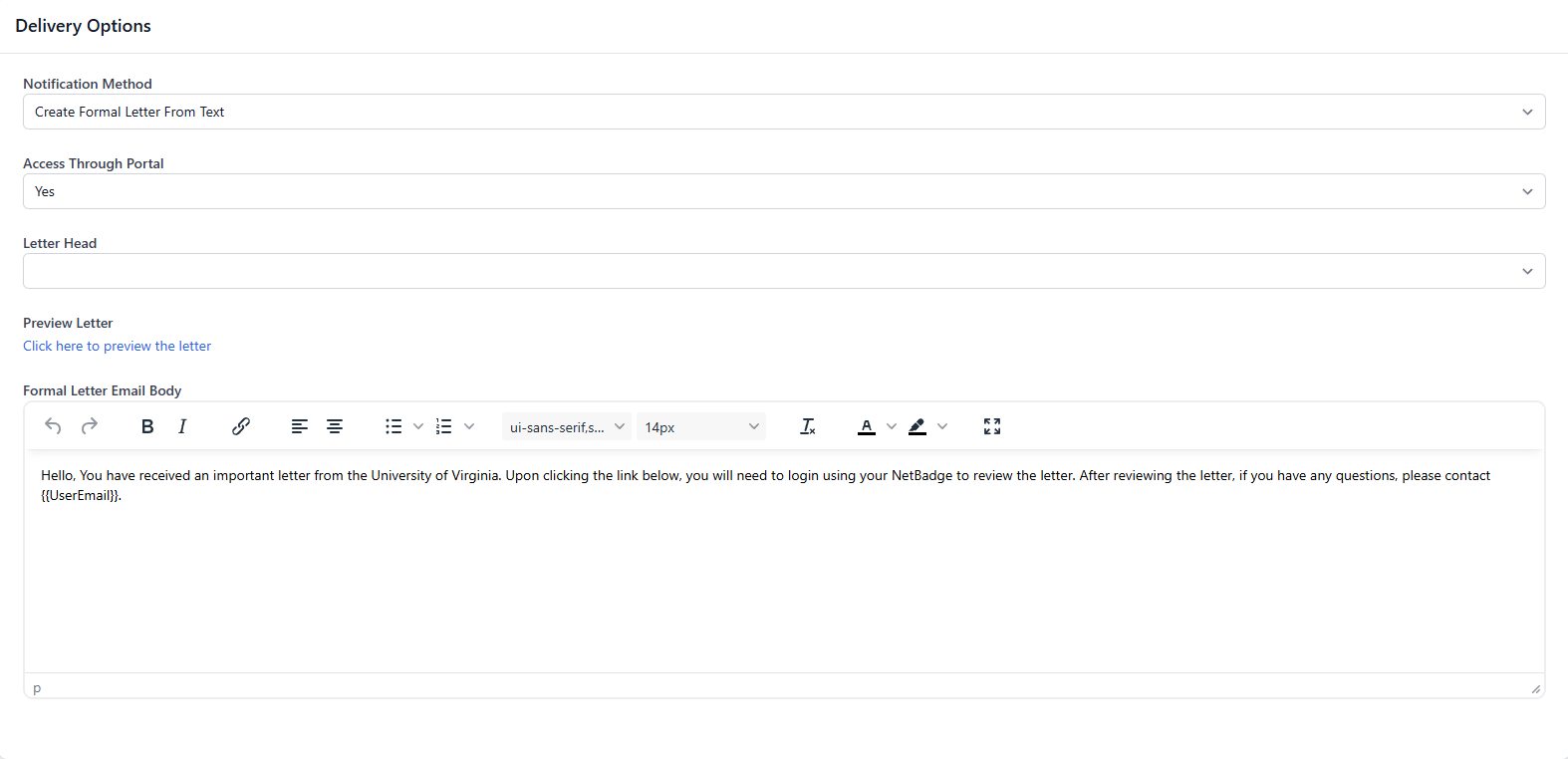
The Delivery Options section at the bottom of the Email form allows users to control how the email content is delivered. Use the Notification Method dropdown to select one of the following options:
Send Text in Email
This option sends the message as a standard email using the subject and body entered in the Email form. No additional fields are required.

Create Formal Letter From Text
This option generates a formal letter using the email content and is typically used for official communications that require standardized formatting. When selected additional fields appear:
- Access Through Portal — Determines whether the letter is accessible through SGDocs
- Letter Head — Allows selection of a predefined letterhead for the formal document
- Preview Letter — Click to preview the letter before sending
- Formal Letter Email Body — A separate body field used to format the content as a formal letter
Signatures & Attachments
Email Signatures
Users can create and manage their email signature from My Account. To set up your signature:
- Click your name in the top right corner of SafeGrounds
- Select My Account from the dropdown
- Navigate to the Settings tab
- Enter your signature in the Email Signature field
- Click Save
Once saved your signature will be automatically appended to future emails sent through SafeGrounds.
Attachments
Files can be included with outgoing emails. To add attachments drag and drop files into the attachment area or select files manually from your device. Attachments can also be included in email templates.