 SafeGrounds
Dockets
About Dockets
The Dockets feature provides a centralized view of cases organized by docket type. From the Dockets page, you can review case information, track activity, and manage docket notes and actions.
While the overall layout and core functionality are consistent, the information displayed and available tabs may vary depending on the docket type.
Docket Page Layout
The screenshot below highlights the top section of a docket page, which is consistent across all docket types.

- Docket Name — Displays the docket name and provides high-level context for the selected docket
- Docket Date — Displays the date associated with the docket
- Status Badge — Indicates the current status of the docket
- Calendar Icon — Allows selection of a docket by date. Click to view past and upcoming dockets
- Add Docket — Opens a slide-over to create a new docket for a selected date, unless a docket already exists on that day
- Actions Menu — Provides access to docket-specific actions including viewing history, editing the docket, and adjusting the case sort order
Calendar-Based Docket Navigation
Clicking the Calendar icon at the top of the Docket page opens a calendar pop-up that allows you to navigate between available dockets.
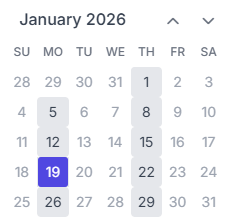
- The current date is outlined in purple, while the selected docket date is highlighted in purple
- Past and upcoming docket dates are displayed as gray squares and are selectable
- Dates without dockets are disabled and cannot be selected
- Use the arrow controls in the top-right of the calendar to navigate forward and backward between months
To navigate to a different docket, click any selectable date in the calendar. The system will open the selected docket where you can review its details, associated cases, and activity.
Add Docket
The Add Docket slide-over allows you to create a new docket by entering the required information.
- Enter the Docket Date
- Add Cases by entering the applicable case numbers
- Add Attendees by entering the names of individuals in attendance
- Click Save to create the docket
Docket Actions Menu
The Docket Actions menu provides access to the following options. Availability may vary by docket type and user permissions.
View Docket History
Opens the Docket History page which provides a historical view of dockets and their associated cases.
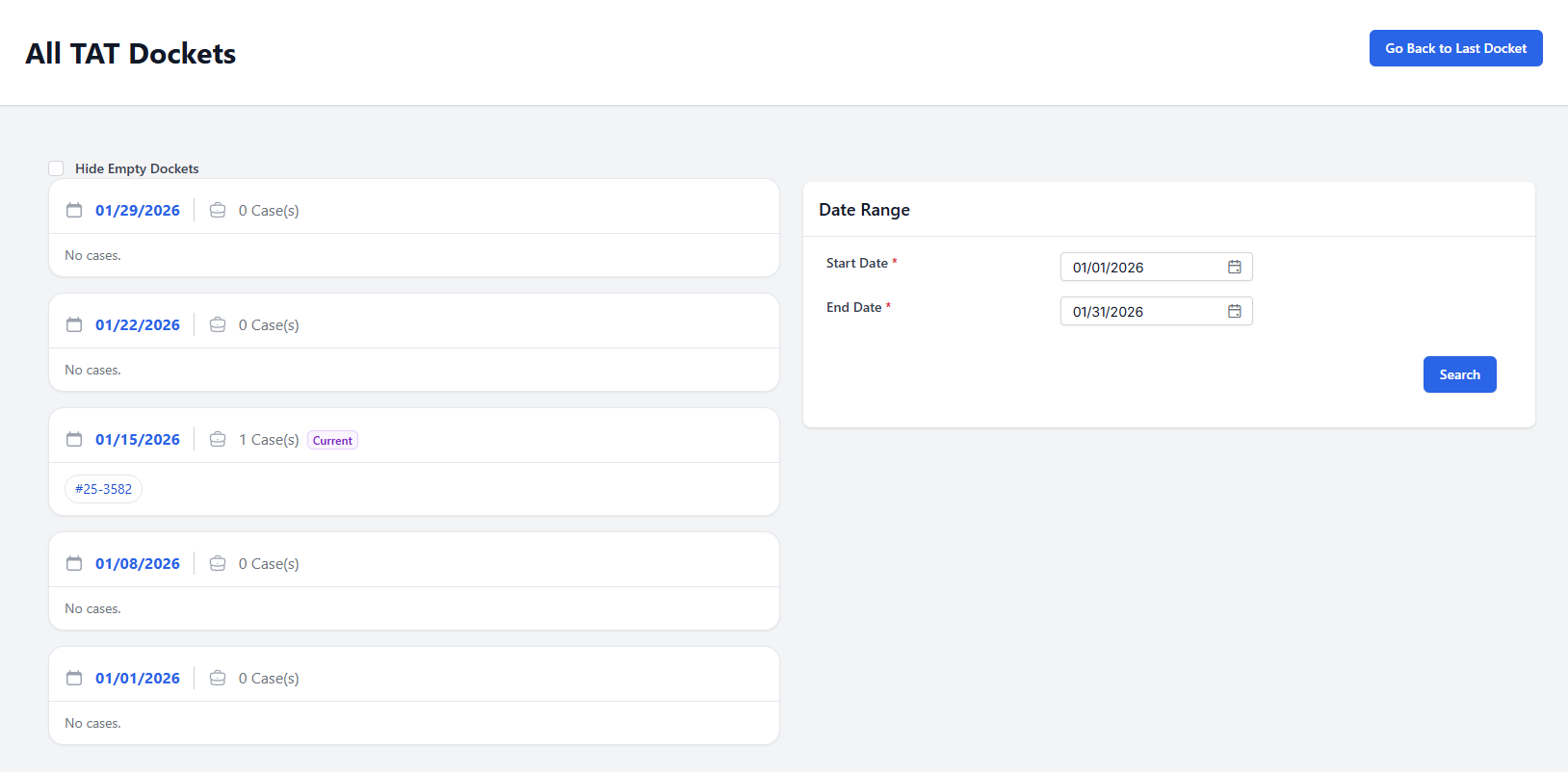
The Docket History page allows you to:
- View current and past dockets of the selected type
- See how many cases are associated with each docket
- Review docket-level activity and context over time
- Add or edit docket notes to capture updates, decisions, or follow-up information
Edit Docket
Opens the Edit Docket slide-over, which is pre-populated with the selected docket's information allowing you to update existing details without creating a new docket.
Edit Case Sort Order
Opens the Edit Case Sort Order slide-over which allows you to control the order in which cases appear within the selected docket. Reorder cases by dragging and dropping them into the desired sequence, then click Save to apply the new sort order.
TAT Docket
The TAT Docket displays docket information with options tailored for TAT case management. While it shares standard docket actions it includes TAT-specific functionality.
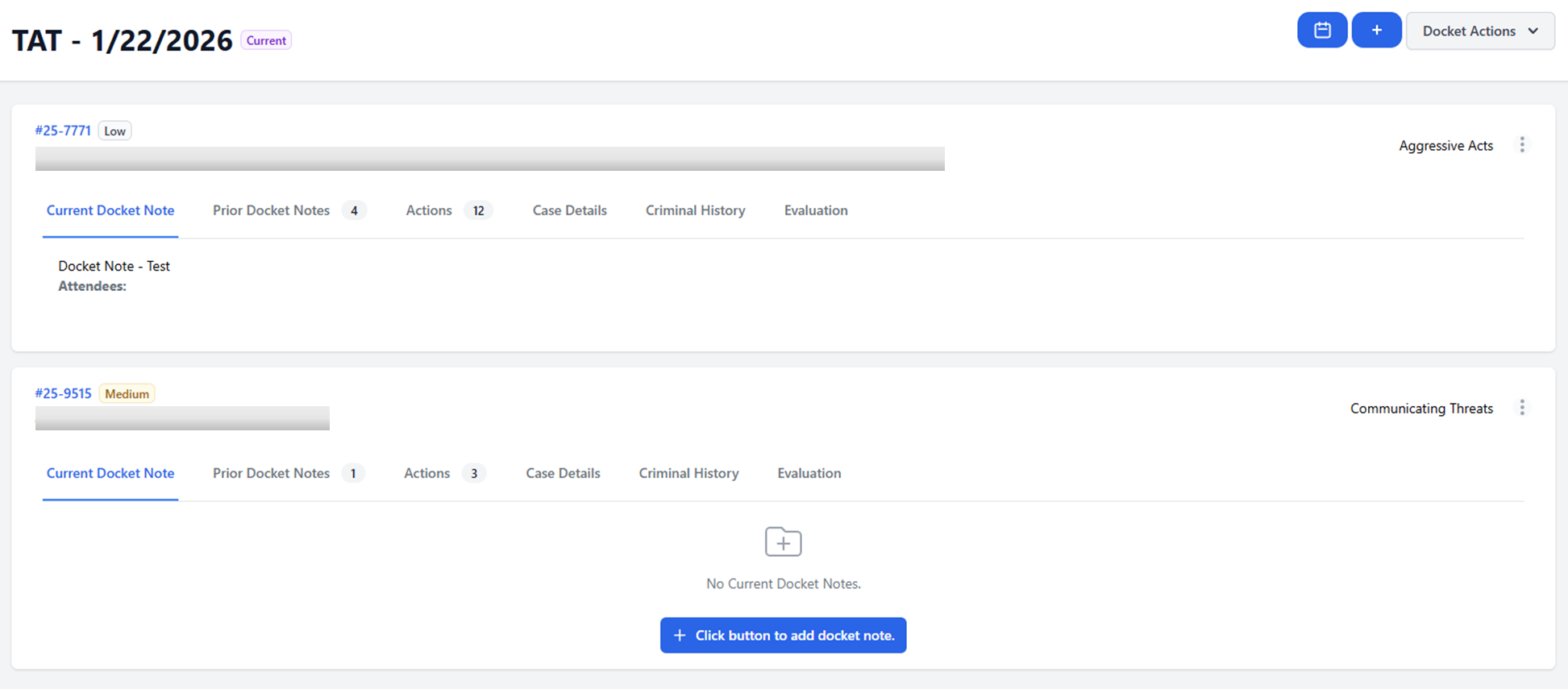
The ellipsis menu for each case contains the following options:
- Remove Docket Case — Deletes the selected case from the docket
- Move Docket Case — Opens a slide-over that allows you to move the case to another docket
Additional functionality within each case card:
- Click through the tabs in a case card to view specific case details
- Edit existing docket notes by clicking inside the current note to open the text editor
- If no docket note exists click the blue Click button to add docket note to create one
- Each case displays a threat-level badge next to the case number indicating Low, Medium, or High threat
PC Docket
The PC Docket uses a different layout and provides expanded case-level functionality.
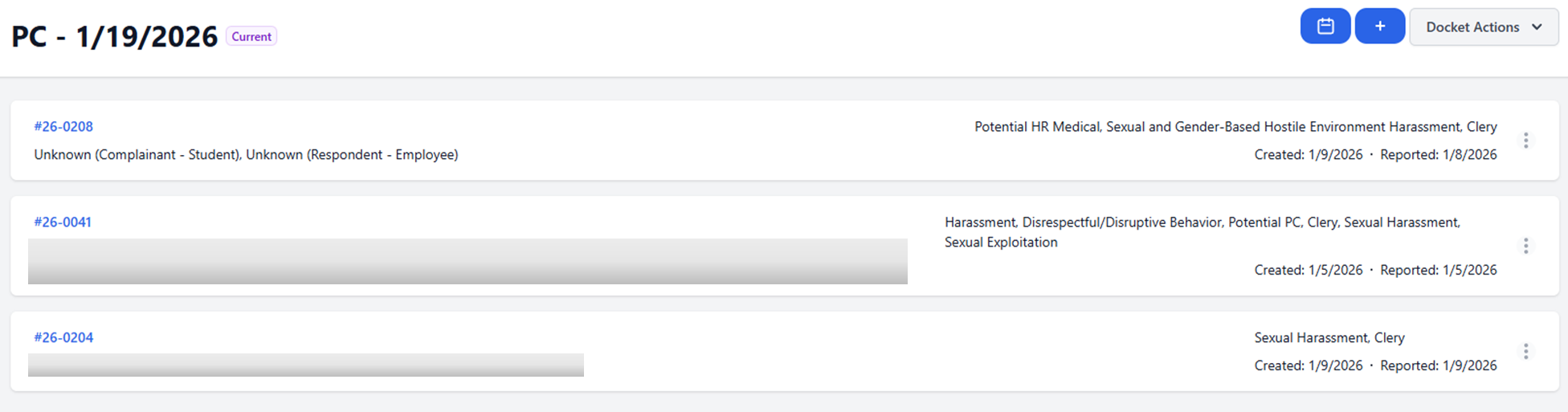
Key differences from other docket types include:
- Click anywhere on a case card in the list to open it and view greater case details
The ellipsis menu contains more options than TAT dockets:
- Remove Docket Case — Deletes the selected case from the docket
- Move Docket Case — Opens a slide-over to move the case to another docket
- Edit Note — Opens a text editor to add or edit a docket case note
- Evaluation — Opens the PC Evaluation panel for the case in the current tab
- Evaluation New Window — Opens the PC Evaluation panel in a new browser window, leaving the current tab intact