 SafeGrounds
Searching
Search Methods
SafeGrounds provides several different search methods to help you quickly locate cases, profiles, and records within the system. Each search type is designed for a specific purpose — understanding which search to use will help you find information more efficiently.
Global Search Bar
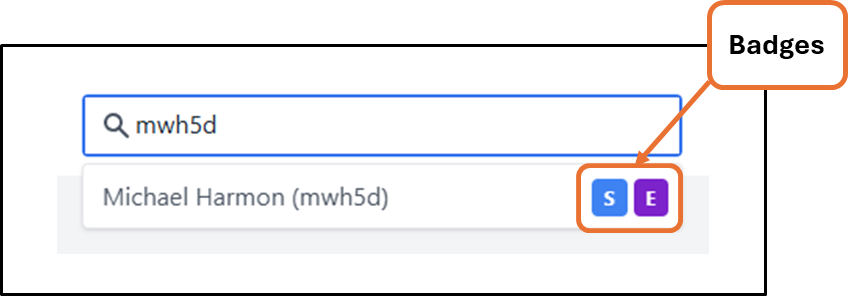
The Search Bar in the top-left corner of your screen can be used at any time from any screen. Using the search bar, you can search by any of the following:
- Profile name — Full or partial (e.g. First Last)
- UVA ID
- Case number — Full or partial, using the format #YY-XXXX where YY is the year the case was created and XXXX is the sequential number assigned to the case
Main Menu Search
There are five main search functions under the Search tab in the Main Menu: Text Search, Historical Search, Advanced Person Search, Contact Search, and Profile Search.
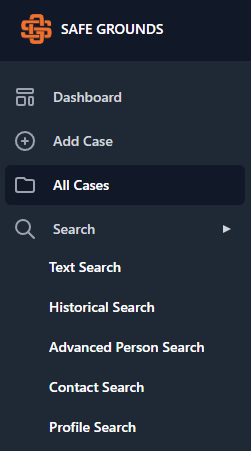
Text Search
The Text Search feature allows you to locate content by searching for keywords or phrases across text-based records in the system.
Enter a keyword or phrase in the search field to return matching results. You can optionally use the Search All drop-down to filter results by content type, including case notes, case actions, incident descriptions, or documents.

After performing a search, matching results are displayed in a list below the search area. Selecting an entry opens the associated record, allowing you to view additional details based on the content type.
Historical Search
The Historical Case Search feature works in the same way as Text Search, allowing you to search using keywords or phrases.

The key difference is that Historical Case Search returns results from cases originating in previous systems. You can optionally use the Search All drop-down to filter results by source system, including Navex, Eris, PeopleSoft, and Report A Barrier.
Advanced Person Search
The Advanced Person Search feature allows you to search for individuals using a broader set of criteria beyond UVA ID or name.
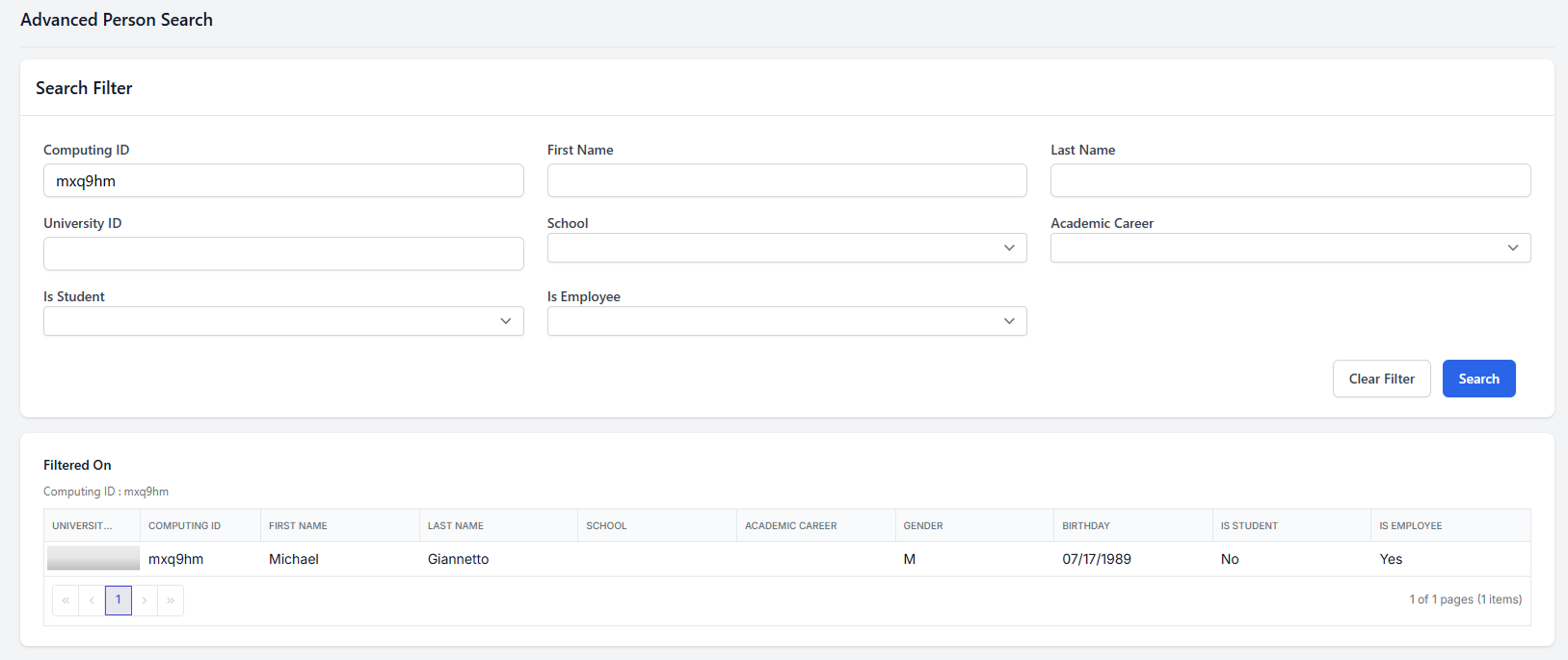
When you open the Advanced Person Search page, enter any information you know about the person — there are no required fields. When finished, click the Search button at the bottom of the page. Matching results will be displayed below.
Contact Search
The Contact Search feature allows you to search for individuals or student organizations using specific information you may already have, such as an address, part of a name, or a phone number.
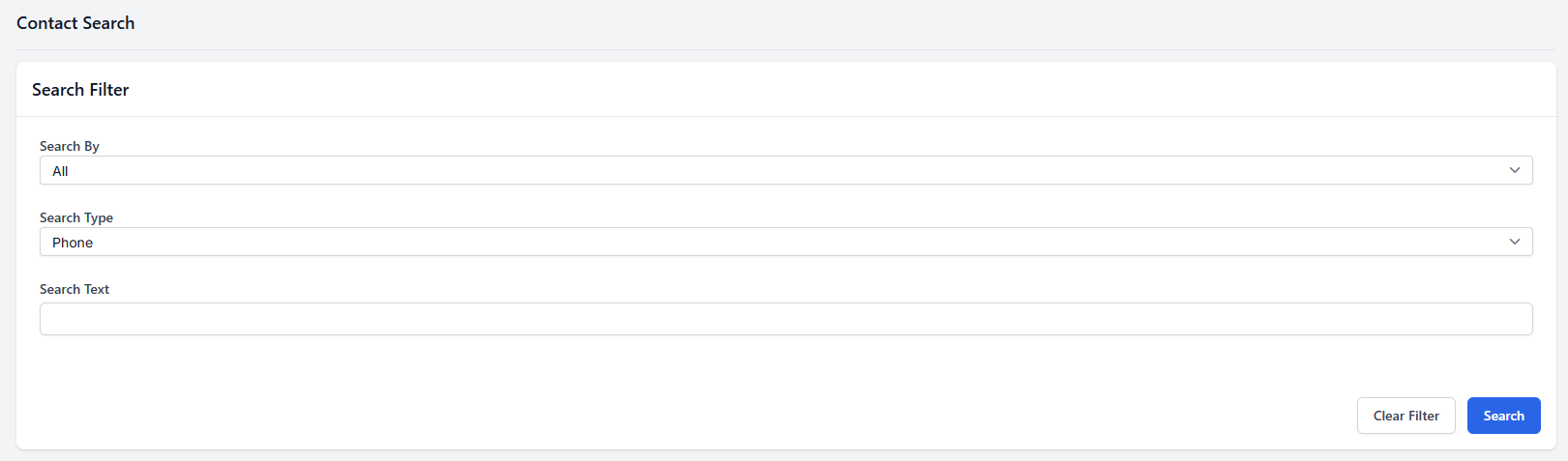
For example, if you have the phone number of someone who called regarding a student but do not yet have the student's name, you can search using that phone number under Emergency or Parent Contact until the corresponding student profile is returned.
Profile Search
The Profile Search feature allows you to quickly find profiles using one or more known details. It works in the same way as Advanced Person Search, giving you the flexibility to search with as much or as little information as you have.
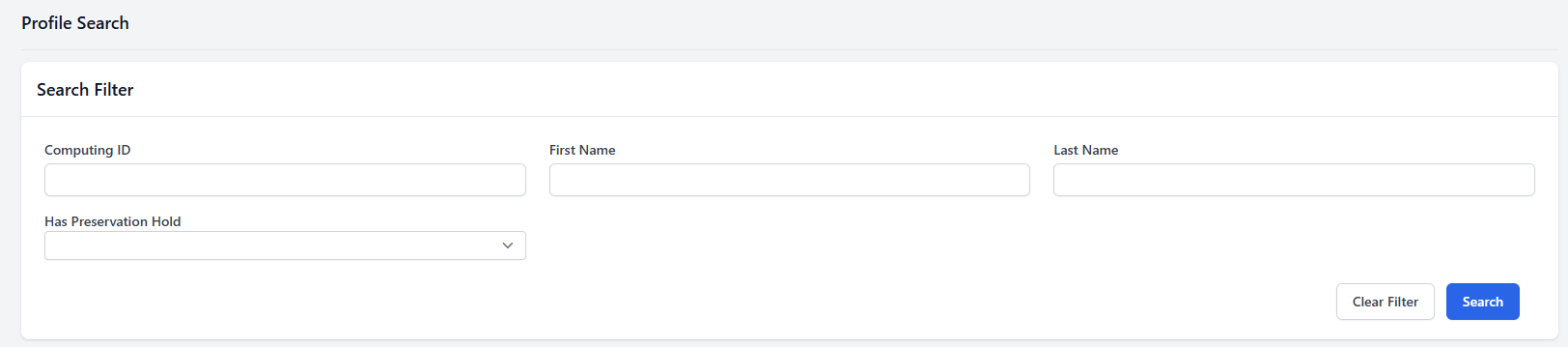
You can also use Profile Search to filter for profiles that have preservation holds, making it easier to identify and manage held profiles.