 SafeGrounds
Profiles
About Profiles
A Profile in SafeGrounds represents an individual — typically a student, employee, or third party — within the system. Profiles display biographical, demographic, and contact information pulled directly from SIS or Workday, as well as any cases, notes, and other information associated with that individual.
Any individual that has no additional information such as cases, notes, or disclosures affiliated with their profile will have a View Only Profile unless a full profile is created.
Accessing Profiles
There are two ways to access a profile in SafeGrounds:
My Profile
To view your own profile click your name in the top right corner of SafeGrounds and select My Profile from the dropdown menu.
Searching for a Profile
Any user with appropriate permissions can view another individual's profile by searching in the Global Search Bar. You can search by:
- Full or partial name
- University ID number
- Computing ID
An individual's computing ID is displayed in parentheses next to their name in search results. Badges next to the name indicate whether the individual is a student, employee, or both. For more information on searching see Searching.
Profile Layout
The top section of a profile displays the individual's photo from their ID card, their name and computing ID, badges indicating their affiliation, and basic contact and biographical information pulled from SIS or Workday.

The left side menu provides access to the four profile sections:
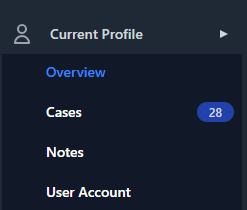
- Overview — Displays biographical, demographic, employment, and contact information
- Cases — Displays all cases associated with the individual
- Notes — Displays notes associated with the individual
- User Account — Displays the individual's SafeGrounds account information. See My Account for more details
Profile Tabs
Overview
The Overview tab displays detailed information about the individual organized into two main sections:
Employee Information
Displays employment details pulled from Workday including two sub-tabs:
- Employee Assignment — Shows Working Title, Employee #, Assignment #, Employee Type, Compensation Type, Hire Date, Probation End Date, Department, Organization, Agency, and Company. A Show Other Employment button at the bottom reveals any additional employment records
- Supervisor Information — Displays information about the individual's supervisor
Contact Information
Displays contact details organized into three sub-tabs:
- Phone — Work, home, and mobile phone numbers
- Address — Current address information
- Emergency Contacts — Emergency contact information on file
Cases
The Cases tab displays all cases associated with the individual including the Case Number, the individual's role within the case, the date of report, the Case Type(s), and the designated Case Owner. Click on any case to navigate to the Case Overview page if you have permission to view it.
Notes
The Notes tab is intended for general or contextual information about an individual that is not effectively captured in a case. Notes may relate to an individual's identity, experience, or circumstances. Any information relating to a specific incident or concern should be captured in a case rather than a note.
To add a note click the Add Note button and provide the relevant information.
User Account
The User Account tab displays the individual's SafeGrounds account settings including their Role, Team, Classifications, Permissions, and Subscriptions. For more information see My Account.
Actions Menu
The Actions button is located in the top right corner of the profile. Clicking it reveals the following options:
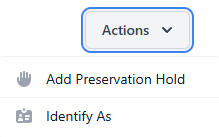
- Add Preservation Hold — Places a hold on the profile to prevent it from being deleted during data retention cycles. A reason must be provided when adding a hold
- Identify As — Allows a SafeGrounds user to note any particular gender identity pronouns that an individual prefers such as she/her/hers or they/them. This information is manually entered and is not pulled from SIS or Workday
Profiles vs Involved Parties
Profiles and Involved Parties serve fundamentally different purposes and it is important to understand the distinction:
- A Profile is connected directly to an individual and is not specific to any one case. It represents the person across all of their interactions within SafeGrounds
- An Involved Party refers to a person as they are associated with a particular case. Involved Parties can be connected to a profile to ensure the case appears in the individual's Cases tab
By connecting a profile to an Involved Party you ensure that the case will always be associated with that individual in SafeGrounds. For more information see Involved Parties.
Creating a Permanent Profile
Any individual with no additional information affiliated with their profile will have a View Only Profile. There are two ways to create a full permanent profile:
- Create a case and add the individual as an Involved Party. See Add Case for more information
- Find the individual using the Global Search Bar then click the Create Profile button on their profile
Connecting a Profile to an Involved Party
Connecting a profile to an Involved Party ensures the case appears in the individual's Cases tab and remains associated with them in SafeGrounds.
When Adding a New Case
Select Yes for the Is Identity Known field and search for and select the appropriate profile in the Profile field. See Add Case for more information.
When Editing an Existing Involved Party
Go to the Edit tab on the Involved Party page and search for and select the appropriate profile in the Profile field. See Involved Parties for more information.
You may need to connect a profile to an existing Involved Party if:
- An Involved Party was initially unknown at the time of report but their identity was learned later
- The Involved Party was originally connected to the wrong profile
- A case was entered through JRI and needs to be connected manually
Student Organization Profiles
In addition to individual profiles SafeGrounds houses a profile for all active Student Organizations. You can search for a student organization by name using the Global Search Bar. Each organization's profile displays the most recent organizational classification, status, and contact information automatically imported from the Office of Student Engagement's platform.
Student Organization profiles also display a roster of active members on the right side of the screen. Each member is listed with a badge indicating their role within the organization.
If a student organization has been named as a party to a case such as in a report of Hazing those cases will be listed on the left side of the screen. Any notes about the organization will also be listed there. Student Organization profiles support Follow and Actions functionality like individual profiles and can be listed as an Involved Party in a case.