 SafeGrounds
Templates
About Email Templates
The Email Templates page allows users to view, create, and manage email templates within SafeGrounds. Templates are organized by Classification and the page provides tools for filtering, previewing, editing, and creating templates. User capabilities depend on their permissions for each classification.
Permissions
Template creation and editing are controlled by Classification Ownership.
Owners
Classification owners can:
- Create templates in that classification
- Edit any template in that classification
- Attach files to templates in that classification
- Manage template content at the classification level
Non-Owners
Non-owners cannot add or edit classification templates. They can:
- Create Personal Templates only
- Edit their own personal templates
- Add attachments to their personal templates
Page Layout
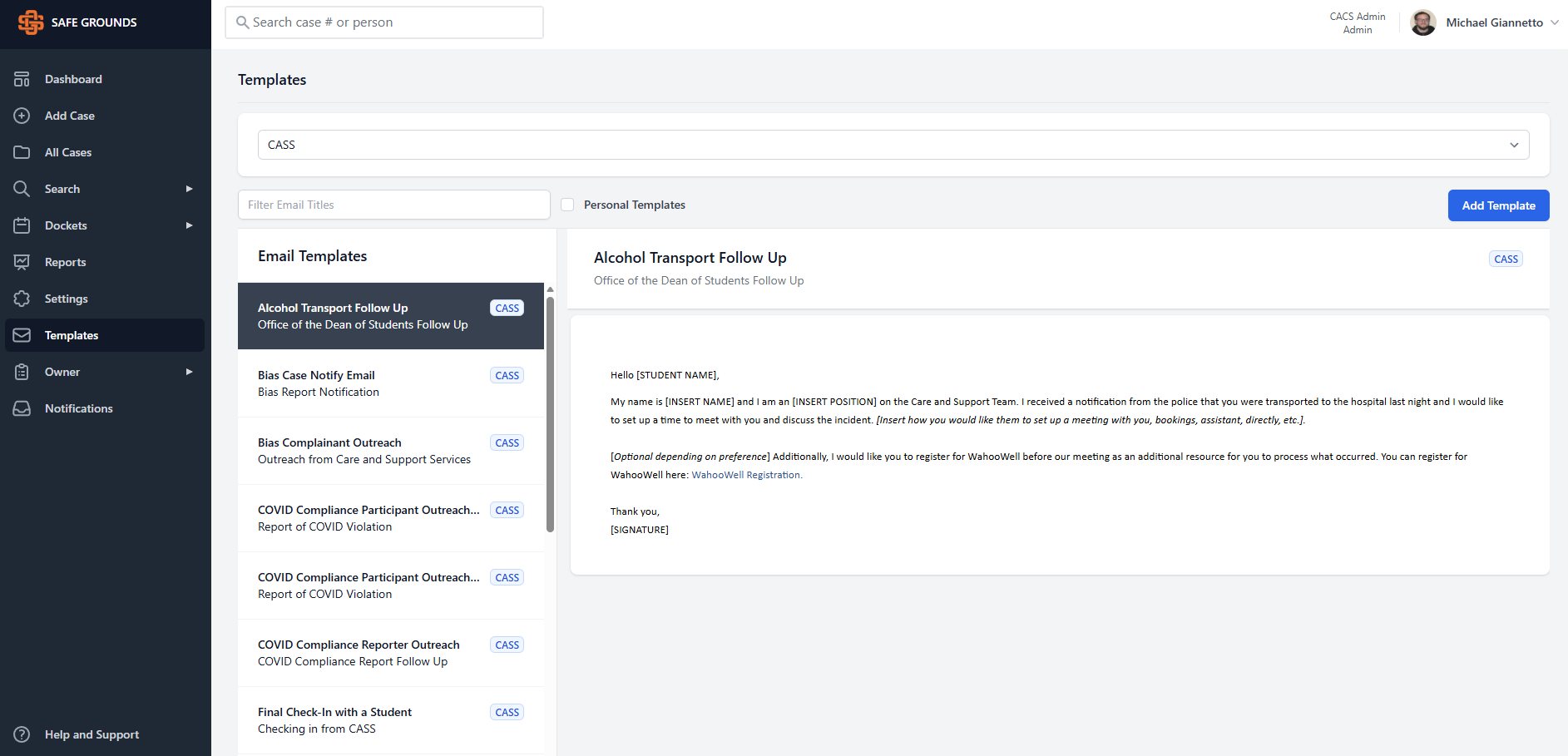
- 1 — Classification Dropdown — Filters templates based on their classification (e.g., CASS, ADA, Title IX)
- 2 — Email Title Filter — Search box that filters templates by title within the selected classification
- 3 — Personal Templates Toggle — Shows only templates personally created by the user
- 4 — Template List Panel — Displays templates available under the selected classification or personal templates
- 5 — Template Preview — Shows the template body, variables, and optional sections. Editable only if the user is a Classification Owner or the creator of a personal template
- 6 — Add Template Button — Creates a new template. Owners can create classification or personal templates. Non-owners can create personal templates only
How to Use the Email Templates Page
View a Template
- Select a Classification
- Browse the Template List
- Select a template to load it in the Preview/Editor pane
Filter Templates by Title
- Enter a keyword in the Email Title Filter
- The list updates automatically
Show Only Personal Templates
- Check Personal Templates
- The list displays only templates you created
- Uncheck to return to classification templates
Create a New Template
If you are a Classification Owner:
- Select the correct Classification
- Click Add Template
- Enter content including title, message body, optional placeholders, and attachments
- Save the template
If you are not a Classification Owner:
- Turn on Personal Templates
- Click Add Template
- Enter template information and attachments
- Save the template
Edit an Existing Template
Owners can edit any template within their classification. Non-owners can edit personal templates only — all others appear read-only.
Attachments in Templates
Templates support file attachments with the ability to upload up to 10 files at once. Attachments are included when the template is used in an outgoing communication.
Template Structure & Best Practices
- Use placeholders like [STUDENT NAME] and [INSERT NAME]
- Clearly separate optional sections
- Use concise professional language
- Do not include sensitive personal data directly in templates