 SafeGrounds
Add Case
When to Create a Case
The majority of cases created in SafeGrounds are entered directly by users. You should create a new case when information about an incident, concern, or occurrence:
- Would be relevant to an Involved Party's conduct history
- May implicate one or more University policies requiring University response
- Could be relevant to other users for contextualizing future incidents, concerns, or occurrences
Adding a Case
Select Add Case from the main menu on the left. Enter all known information about the case. All fields marked with a red asterisk are required.
The form is smart — some selections will generate additional fields which should then be completed if information is available.
Report Information
In the Report Source dropdown, choose an option. The form will update based on your selection:
- Reporter — A Method of Contact dropdown will appear. Select how the reporter provided the information
- Other — A text box will appear. Enter a brief description in the Report Source Description field
- All other selections — An External Number field will appear. Enter the appropriate reference number from the external system
Police Information
If police were involved in response or could become involved — such as in reports of an alleged crime including many Title IX violations — include all known information about the jurisdiction in which the incident occurred. If police were not involved and no crime occurred, select No in Police Response and move to the next section.
Involved Party Information
Complete all known information about the Involved Party. After selecting an option in the Relationship with UVA field you will be prompted with an additional question based on the selected relationship. If the party is a Student, Employee, or Former Employee/Alum, another dropdown will appear — select the type that best applies.
Is Identity Known
When Yes is selected in the Is Identity Known field, a toggle labeled Affiliated with UVA or has Profile will appear allowing you to search for the involved party using their UVA ID or name.

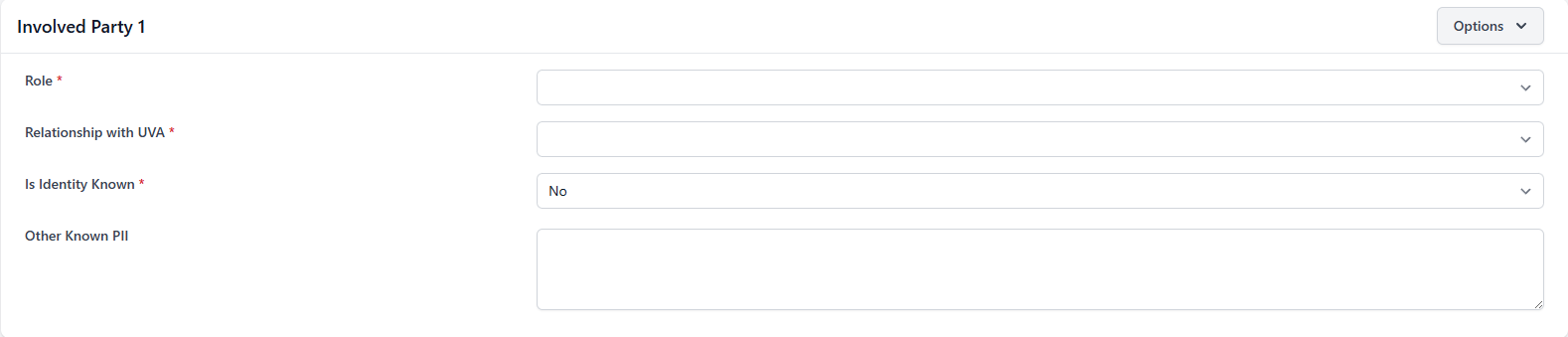
If the involved party is not affiliated with UVA, switch the toggle off to reveal the alternate view and provide all known contact information about the involved party.
Connecting Roles and Case Types — Examples
The following examples illustrate how to correctly assign roles and case types to involved parties based on the nature of the incident.
Example 1 — Physical Altercation
Shelby and Shaka are having an argument. Shelby punches Shaka in the face.
- Shaka — Role: Participant | Case Type: Interpersonal Conflict
- Shelby — Role: Participant | Case Types: Interpersonal Conflict, Physical Assault
Example 2 — Break-In and Theft
Laurie breaks into Shaka's house and takes several items.
- Laurie — Role: Participant | Case Types: Trespassing, Burglary
- Shaka — Role: Subject | Case Types: Trespassing, Burglary
Example 3 — Property Damage with Witness
Alex sideswipes Laurie's parked car. Shaka witnesses the accident from inside a nearby building.
- Alex — Role: Participant | Case Type: Property Damage
- Laurie — Role: Subject | Case Type: Property Damage
- Shaka — Role: Witness | No Case Types
Example 4 — Mental Health Concern
Shelby shares with her friend Alex that her mental health is affected by a recent event. Alex provides ongoing support.
- Shelby — Role: Subject | Case Type: Disclosed Mental Health Concern
- Alex — Role: Witness | No Case Types
Example 5 — Roommate Conflict
Shelby approaches her RA saying that roommate Alex has not been adhering to their roommate contract.
- Shelby — Role: Participant | Case Type: Roommate Conflict
- Alex — Role: Participant | Case Type: Roommate Conflict
Example 6 — Mental Health Treatment with Partners
Alex seeks mental health treatment and signs releases with both a University therapist and a private therapist for coordination with a dean.
- Alex — Role: Subject | Case Type: Disclosed Mental Health Concern
- Dr. Carter (University) — Role: University Partner | No Case Type. Add using University ID
- Dr. Hall (Private) — Role: Non-University Partner | No Case Type. Add all known contact information
Case Types & Classifications
Case Types are affiliated with specific Involved Parties to most clearly describe how each party is involved in a given incident. One Involved Party may have multiple Case Types and different Involved Parties may have different Case Types depending on the nature of the incident. For a full overview see Case Types & Classifications.
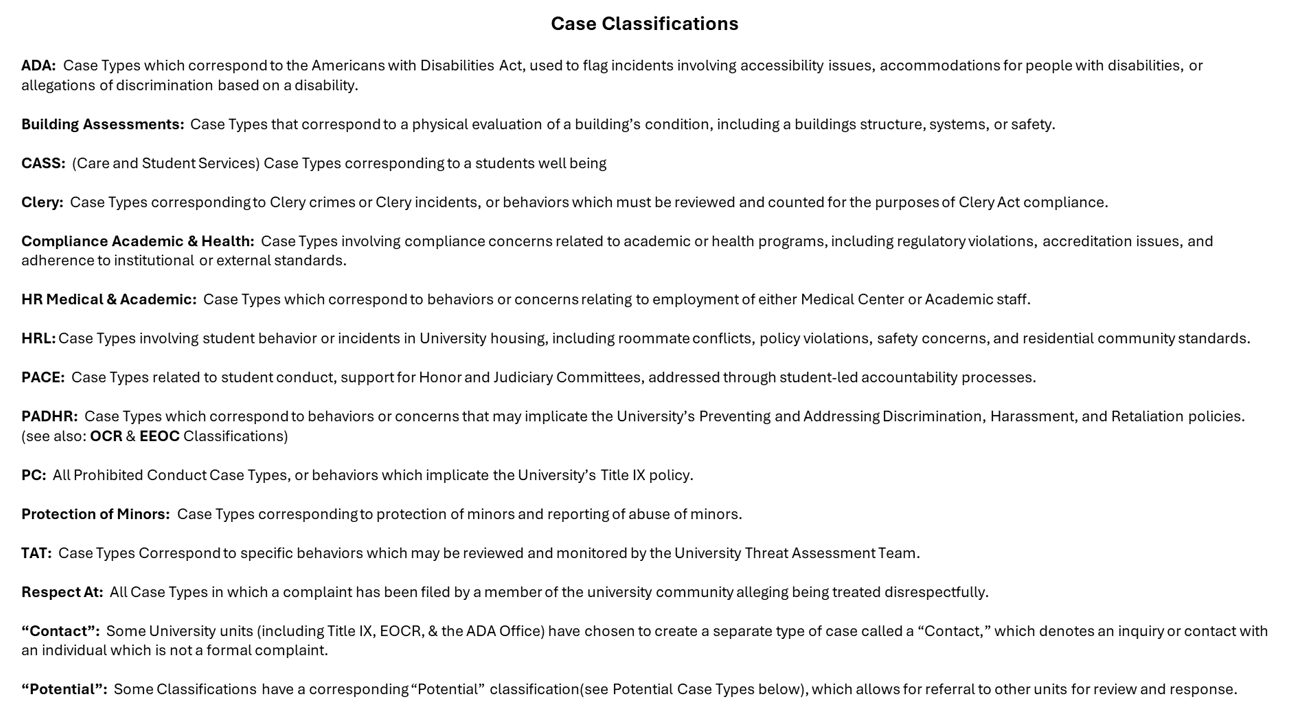
A few important notes regarding Case Types:
- Case Types can only be added to Respondents, Respondent/Complainants, Participants, and Subjects
- Prohibited Conduct (Title IX) Case Types will only be allowed for Respondent/Complainant Involved Parties
- You can add multiple Case Types to an Involved Party or case
- You can add different Case Types to different Involved Parties on the same case
- Some users will be notified of a new case based on the Case Types selected
- Potential Case Types are a mechanism for referring cases between units. When added, users in the corresponding area are notified and expected to review the case
Case Classifications
Each Case Type belongs to a group called a Case Classification. Classifications delineate which University unit, office, and/or policies are most relevant to those case types. They also drive permissions related to what users can see and do with a case.
When a case has Case Types from more than one Classification, it will have all the functionality needed to document follow-up in each area of response. Team Members will only have access to the Classification(s) and Case Type(s) that their permissions allow.
Incident Details
Date & Time Information
If you know the exact date and time of the incident set Is Exact Date Known to Yes, use the date picker to select the date, and enter any additional details in the Date/Time Description field. If you do not know the exact date and time, set it to No and use the Date/Time Description field to provide any available details such as approximate date or time of day.
Location Information
If you know the location select Yes in the Is Location Known field. If it is a known UVA-affiliated location toggle Is Known UVA Affiliated Location and select from the Location dropdown. If it is not UVA-affiliated enter all available location information in the provided fields. If you do not know the location select No and provide as much detail as possible in the description fields.
The Functional Area dropdown represents departments or groups responsible for specific tasks or organizational functions. If known select the best matching option.
Additional Information
- Case Attributes — Aspects or factors that may have contributed to the incident. If the case is suspected to be bias-motivated be sure to include that in the Case Attributes selection
- Incident Summary — Enter a brief overview of the incident
- Incident Description — Provide detailed information about the incident. If you received the report from another source such as an email or document you may copy and paste the content here. This field supports text formatting including bold, italics, and highlighting
Submitting a Case
Before submitting carefully review all fields to ensure they are filled out with as much detail as possible. Make sure all required fields marked with a red asterisk are completed.
Validation Errors
If any required fields are missing or incorrectly filled out a Validation Errors window will appear at the top of the page.

Successful Submission
Once the form is submitted successfully a success message will confirm that the case has been added. You will then be automatically directed to the Case Overview page for the new case.
