 SafeGrounds
My Account
About Your Account
Your Account page provides access to your personal settings, permissions, and preferences within SafeGrounds. To access your account:
- Click your name in the top right corner of SafeGrounds
- Select My Account from the dropdown menu
Your account page is organized into five tabs: Info, Classifications, Permissions, Subscriptions, and Settings.
Info
The Info tab displays your basic account information including your assigned Role and Team.
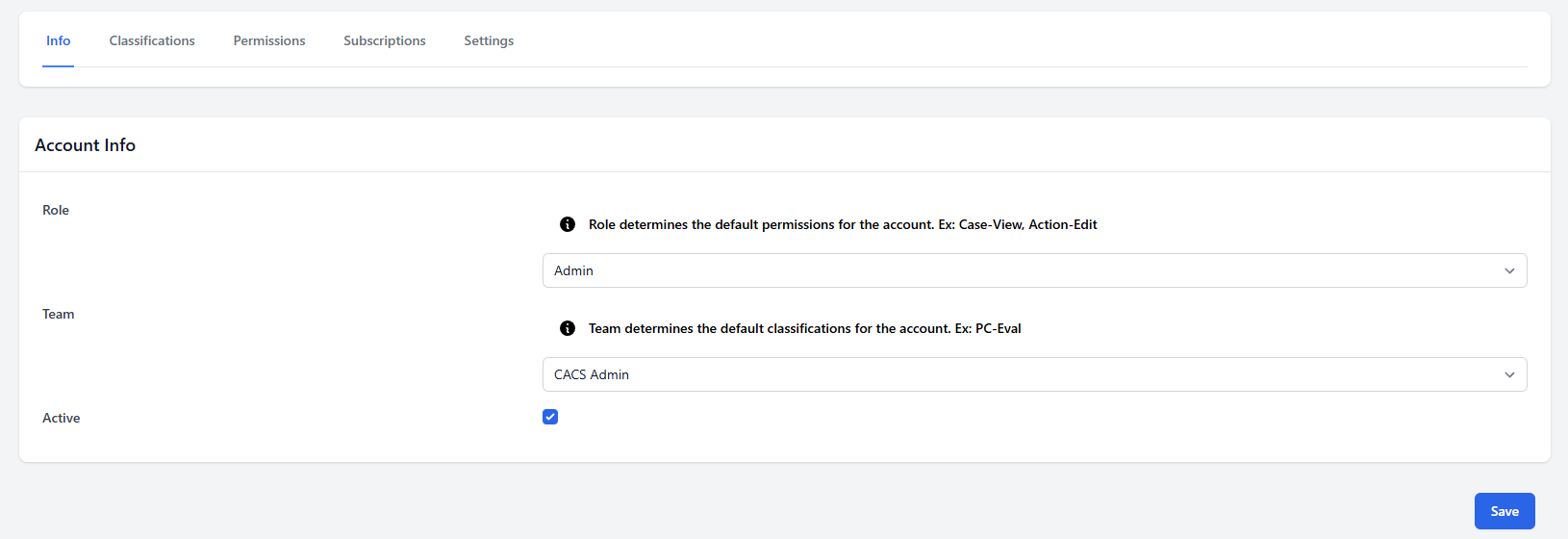
- Role — Determines the default permissions for your account. For example Case-View or Action-Edit
- Team — Determines the default classifications for your account. For example PC-Eval
- Active — Indicates whether your account is currently active in the system
Classifications
The Classifications tab displays the classifications your account has access to and manages your permissions within each classification. This tab is typically managed by your system administrator or Classification Owner.
Potential Classifications
The Potential Classifications section displays classifications that require approval before cases can be classified under them. For each Potential Classification you can see your current permissions across three columns:
- Add — Everyone has Add permission for Potential Classifications by default
- View — Indicates whether you can view cases under this potential classification
- Owner — Indicates whether you are an owner of this potential classification
Permissions
The Permissions tab provides a read-only view of all permissions associated with your account organized by category:
- Case Permissions — What you can do with cases such as Add, View, Manage, Delete, Review, and Assign
- Action Permissions — What you can do with actions such as View, Add, and Manage
- Profile Permissions — Whether you can view profiles in the system
- Settings Permissions — Whether you can manage system settings
- Search Permissions — Whether you can use the search functionality
- Shift Reports Permissions — Whether you can view Shift Reports
Subscriptions
The Subscriptions tab allows you to manage your Case Type and Case Attribute subscriptions. When subscribed you will receive notifications when cases matching your selections are created or updated.
Case Type Subscriptions
Case Types are organized by Classification. Click the arrow next to a Classification to expand it and view the individual Case Types available for subscription. Check the box next to a Case Type to subscribe to it.
Case Attribute Subscriptions
You can also subscribe to specific Case Attributes to receive notifications when those attributes are associated with a case. Examples include:
- Alcohol
- Bias and Bias subcategories such as Bias/Age, Bias/Color, Bias/Disability, Bias/Gender, Bias/Race and others
- Hoo Needs Help categories
- Ambassador
- Ambulatory
Check the box next to any attribute to subscribe to notifications for cases where that attribute is applied.
Settings
The Settings tab allows you to manage your personal preferences and default configurations within SafeGrounds.
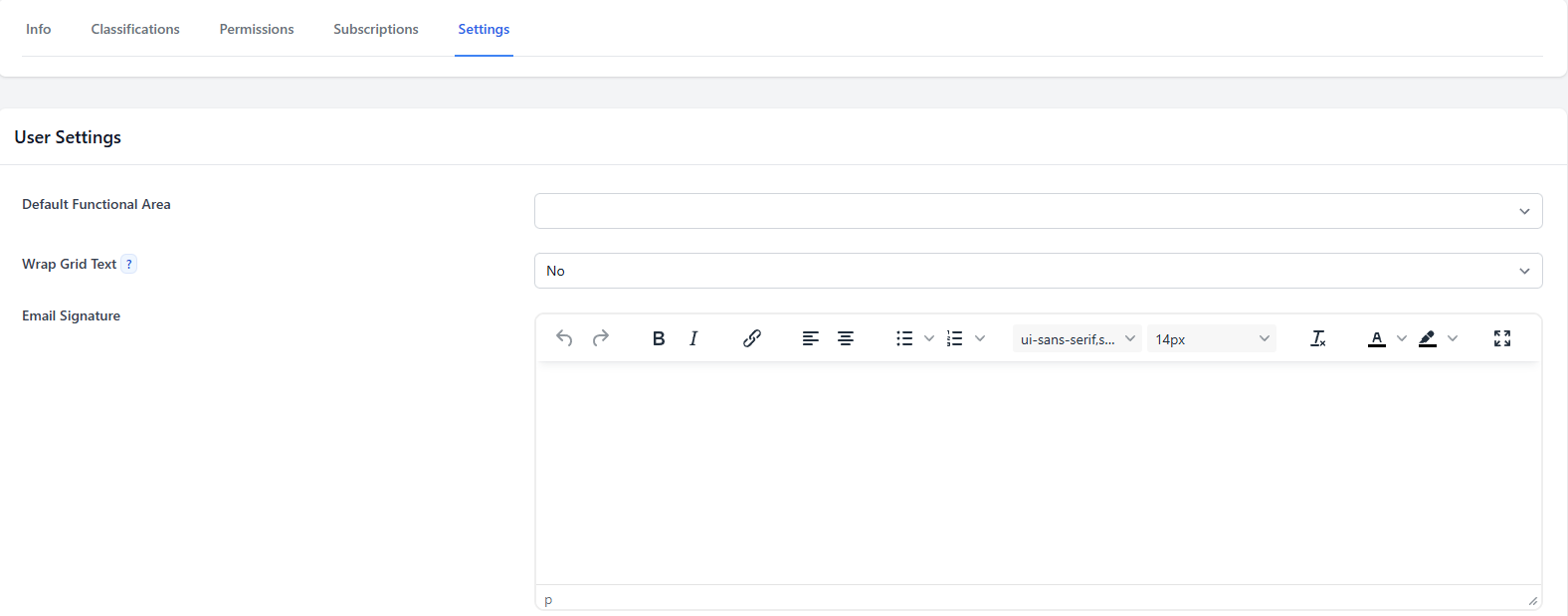
Default Functional Area
Select your default Functional Area from the dropdown. This will be pre-selected when creating new cases saving you time during case entry.
Wrap Grid Text
Controls whether text in grid views such as the All Cases page wraps to multiple lines or is truncated. Set to Yes to see the full text in each column, or No to keep the grid compact with text cut off at the column width.
Email Signature
Enter your email signature in the text editor. Your signature will be automatically appended to emails sent through SafeGrounds. The editor supports text formatting including bold, italics, and hyperlinks.
Formal Letter Body
Enter default body text for formal letters generated through SafeGrounds. This text will be pre-populated when using the Create Formal Letter From Text delivery option when sending emails.