 SafeGrounds
Owner
Introduction
The Owners tab is visible only to classification owners and contains tools for managing access permissions, approvals, profiles, letterheads, and notification settings for their classifications.
Active Cases
The Active Cases page is the first section under the Owners tab. It displays a list of active cases associated with the owner's classification from the past three years, allowing classification owners to quickly review recent and ongoing cases.
The Active Cases grid includes the following columns:
- Case # — The unique identifier assigned to the case
- Incident Types — The type or category of incidents associated with the case
- Involved Parties — The individuals or entities involved in the case
- Reported On — The date the case was originally reported
Selecting a case from the list allows owners to view additional case details.
Access
The Access page is visible only to users who are owners of one or more classifications and shows access details for those classifications. It allows classification owners to see which users have access to cases within a specific classification and to manage their permissions.
Adding a User
The Access page includes an Add User button that allows classification owners to add new users and assign their permissions at the same time. To add a user:
- Navigate to the Owners tab and select Access
- Click the Add User button
- Enter the required user details
- Assign the appropriate permissions for the user
- Click Save to add the user
Managing Existing User Permissions
Each user listed shows their role and six different types of access permissions represented as checkboxes. You can adjust a user's access by selecting or deselecting these boxes — changes update the user's access level immediately.
| Permission | Description |
|---|---|
| View | Allows the user to view cases in the classification |
| Add | Allows the user to add new cases to the classification |
| Eval View | Grants permission to view evaluation details |
| Eval Edit | Allows the user to edit evaluation information |
| View Res | Permits viewing resolution or results related to cases |
| Owner | Indicates the user is an owner with full control over classification access settings |
Approvals
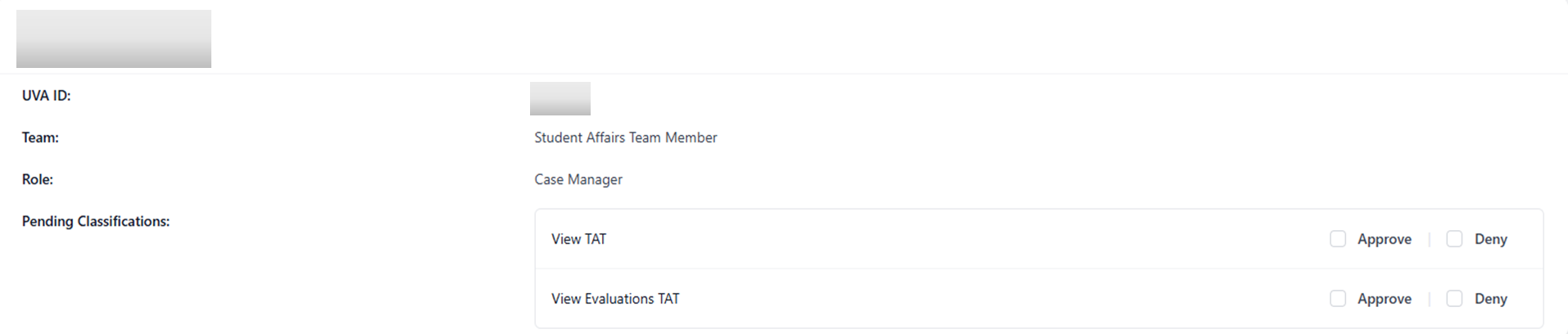
The Approvals page is where classification owners can review and grant pending permissions. These are typically requests submitted by other users who need access to classification cases.
Each pending permission request is displayed in its own card. Within each card owners can review the requested permission and choose to either Approve or Deny it using the corresponding checkboxes.
Create Profile
The Create Profile page allows classification owners to create profiles that are not linked to any case. This is useful for recording notes on individuals who are not associated with a case or affiliated with UVA.
To create a profile fill out all required fields marked with a red asterisk and click the blue Create Profile button at the bottom of the page.
Letter Heads
The Letter Heads page allows classification owners to upload and manage letterhead files used on documents viewed in SGDocs, the system's document viewer. Only users with owner access can view and manage letter heads.
The Letter Heads page displays all existing letter heads for the classification. Each entry includes:
- Title — The name of the letter head
- PDF Margin — The top margin applied to documents using the letter head
- Created By — The user who created the letter head
- View — Options to view or download the letter head
Using the ellipsis menu next to a letter head owners can edit or delete it. Deleting a letter head permanently removes it from the classification.
Adding a Letter Head
Click Add Letter Head to open a slide-over panel where you can define the letter head and upload associated files.
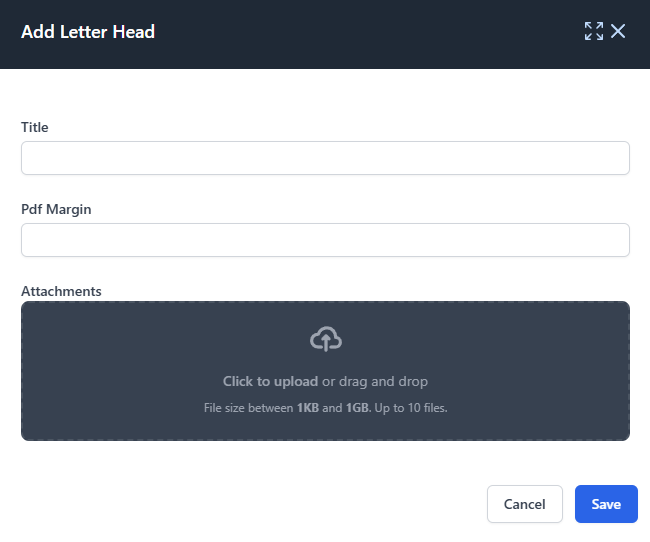
- Title — Enter a descriptive name for the letter head
- PDF Margin — Specify the top margin to be applied when the letter head is used on documents
- Attachments — Upload the file(s) that make up the letter head. File size must be between 1KB and 1GB and up to 10 files can be uploaded
Click Save to create the letter head or Cancel to close the panel without saving.
Notification Settings
The Settings section allows classification owners to manage notifications for their cases. Use the Settings card to select case types and team members to notify.

Notify Team Members on Case Type Removal
When a case type is removed from a case an email can be sent to the team members assigned to that case.
- Case Type — Use the multi-select drop-down to choose which case types should trigger a notification when removed
- Team Members to Notify — Use the multi-select drop-down to select which team members should receive the email notifications